Why customize reTerminal E1001?
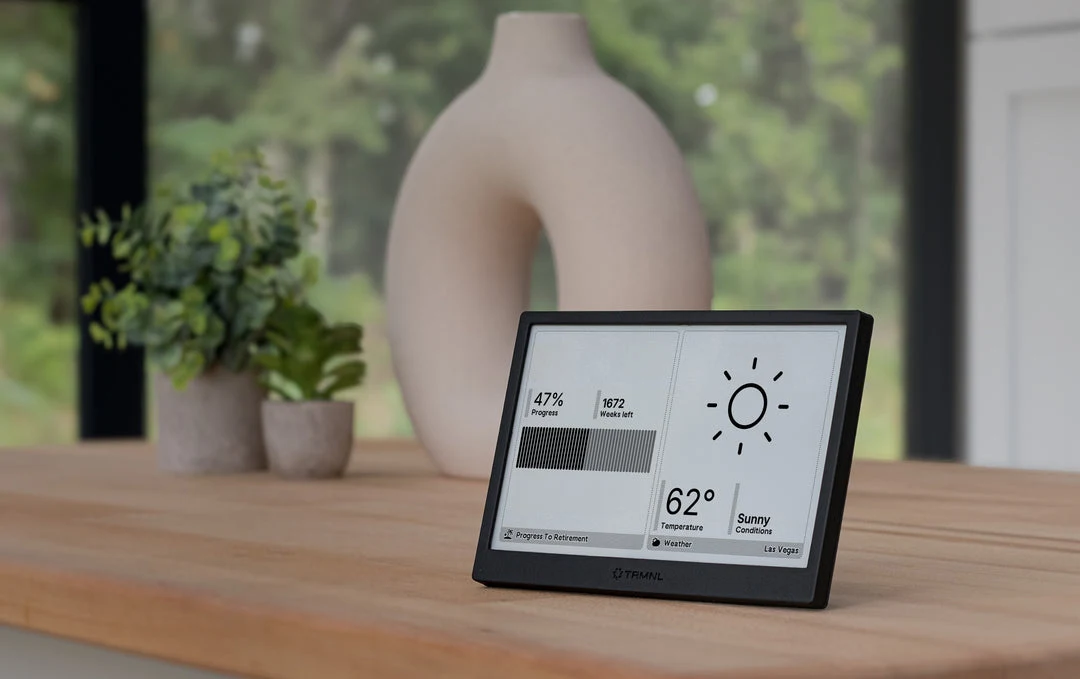
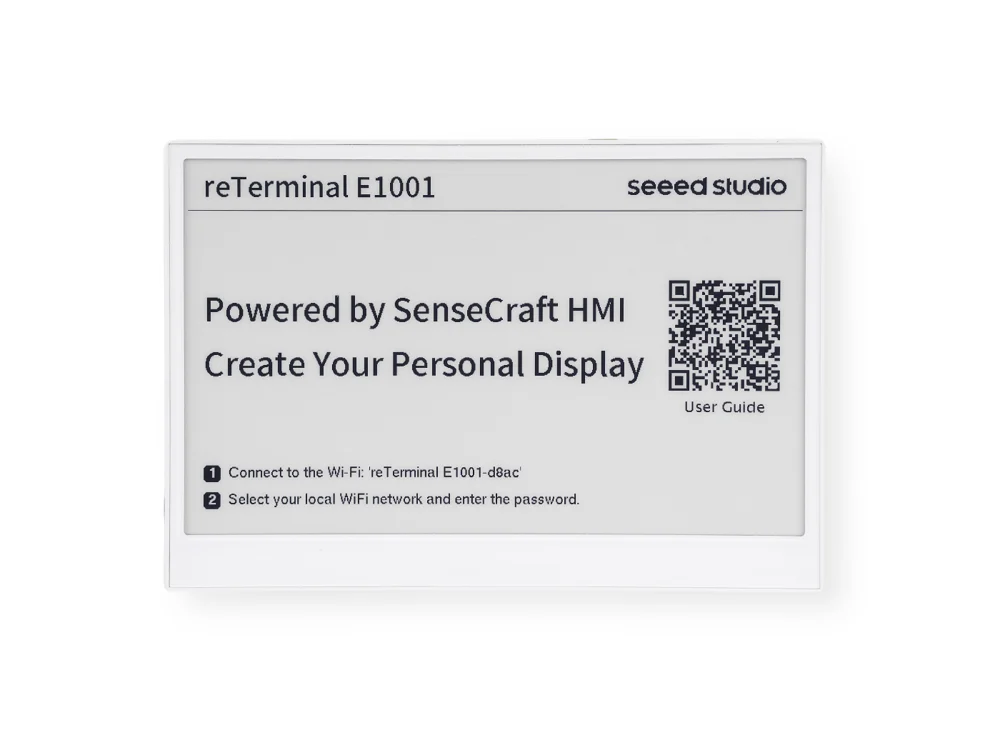
The reTerminal E1001 is a 7.5-inch, 800 × 480 monochrome e-paper display built around an ESP32-S3 in a finished enclosure. Its official software routes include SenseCraft Seeedash, ESPHome, and Arduino. Compared with the color E1002, it prioritizes readable text and supports partial refresh.
A good fit for
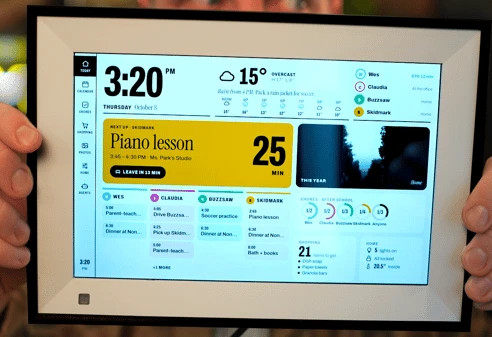
Readable calendars, transit boards, and quiet text-first dashboards.
Not the right fit for
Color graphics, video, or a promise of fixed battery life.
Compatibility
- Exact hardware
- E1001 · 7.5-inch monochrome ePaper
- Software route
- ESPHome / Arduino
- Where code runs
- Your chosen ESPHome, Arduino, or supported stock route controls the display on the device.
- Development tools
- A laptop, a coding agent such as Claude Code or Cursor, and the tools listed in the guide.
- Evidence
- Official docs. Not hands-on tested.
Project ideas
- 01A calendar beside your coffee machine
- 02A reading queue or daily checklist
- 03Home temperature and energy at a glance
Guides & code
Getting started
- 01
Confirm the stock display works
Follow the E1001 setup guide and connect to Wi-Fi before changing firmware.
- 02
Choose ESPHome or Arduino
Use the official model-specific tutorial as your agent's reference. Start with a black-and-white layout at 800 × 480.
- 03
Add useful information slowly
Connect one data source and choose an appropriate refresh interval. Show the data timestamp so an old reading never looks current.
Starter prompt
Help me create a monochrome dashboard for a Seeed reTerminal E1001 at 800 by 480. First ask whether I use ESPHome with Home Assistant or Arduino. Follow the official E1001 documentation, make text readable from across a desk, avoid animation, and include a last-updated timestamp. Use mock data until I choose the real source.
Confirm your exact hardware before running device-changing commands.
Common questions
Can I connect reTerminal E1001 to Home Assistant?
Seeed provides an ESPHome route. Use the E1001-specific instructions and confirm your Home Assistant setup and entity IDs before asking an agent to generate a configuration.
How often should I refresh an e-paper dashboard?
Use an interval that fits the information and panel behavior, not a monitor-style frame rate. Network use, update frequency, and firmware all affect battery life; test your actual layout.
Where can I buy reTerminal E1001?
An Amazon listing is linked as a starting point, not a guarantee of stock or compatibility. Choose E1001 for monochrome. Check included accessories and current delivery options at the manufacturer.