Why customize BUSY Bar?
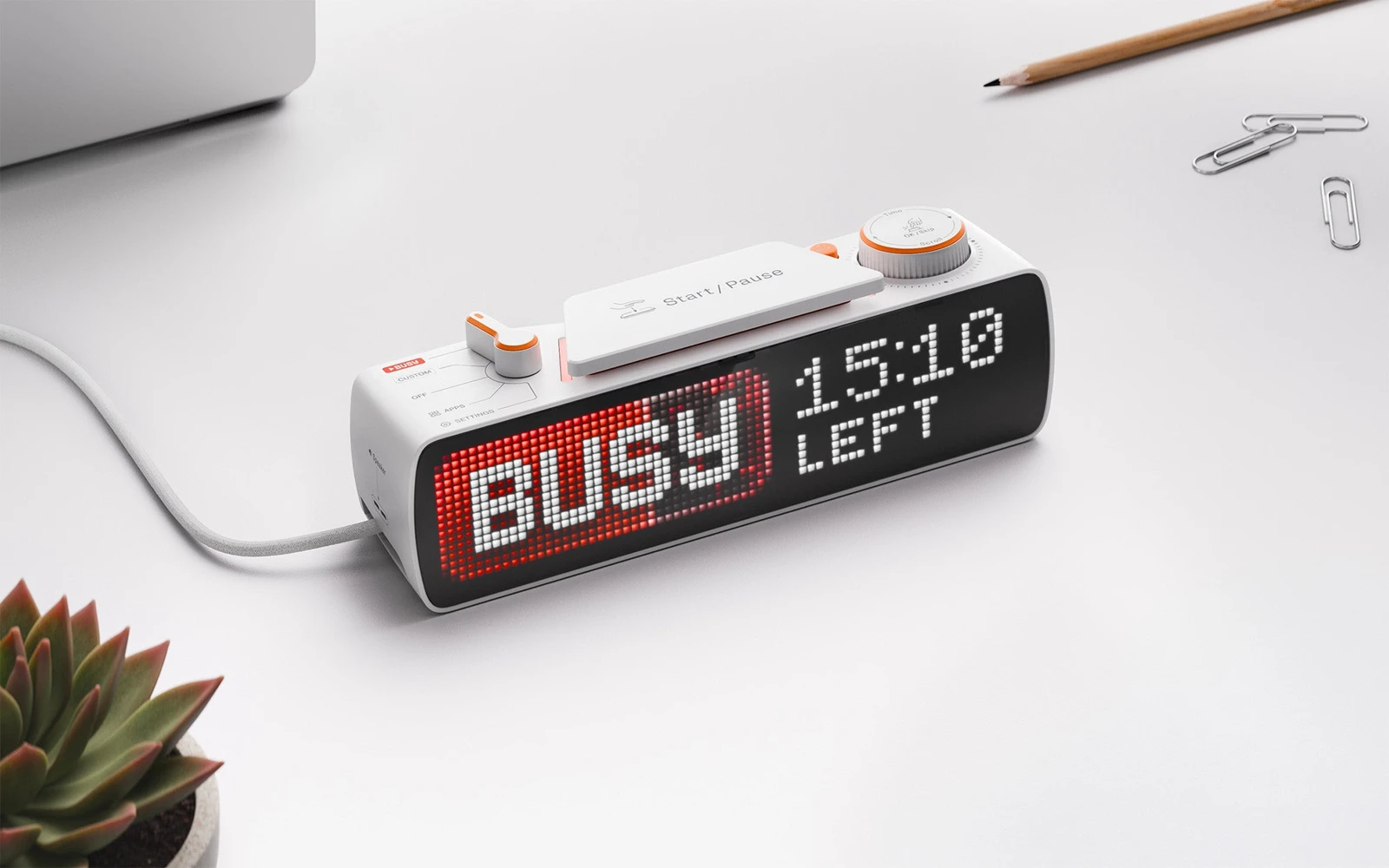
BUSY Bar is more than a preset busy light: its official HTTP interface can draw text and images, control timers and audio, and expose device state. The maker provides Python and TypeScript libraries. A coding agent can help turn one useful event into a glanceable signal without replacing the firmware.
A good fit for
A compact build-status display, meeting cue, or timer.
Not the right fit for
A general-purpose desktop screen or a device that runs desktop apps.
Compatibility
- Exact hardware
- BUSY Bar · match documentation to firmware
- Software route
- HTTP / Python / TypeScript
- Where code runs
- A separate script talks to the device over the documented USB, LAN, or cloud route.
- Development tools
- A laptop, a coding agent such as Claude Code or Cursor, and the tools listed in the guide.
- Evidence
- Official docs. Not hands-on tested.
Project ideas
- 01A build-pass or build-fail status display
- 02A calendar-aware focus sign
- 03A tiny counter for a personal project
Guides & code
Getting started
- 01
Start with the USB example
Follow the maker's HTTP guide to connect the device and read its status before changing settings.
- 02
Render one message
Use the documented image-and-text example. Confirm your firmware's API and screen dimensions rather than assuming a normal browser canvas.
- 03
Connect a useful event
Add one input, such as a build result or timer. Show stale or disconnected status when the script cannot reach its data source.
Starter prompt
Help me make a BUSY Bar status display with the official Python or TypeScript library. First ask for my firmware version, connection method, and the event I want to show. Start with a harmless test message using the documented HTTP API. Keep credentials private and explain whether my laptop needs to stay on.
Confirm your exact hardware before running device-changing commands.
Common questions
Can I show my own text on BUSY Bar?
Its official HTTP interface supports display content and other device functions. Start with the maker’s text-and-image example and confirm the firmware’s supported screen format.
Does BUSY Bar need custom firmware?
The route here uses the documented interface rather than replacing firmware. Local Wi-Fi access still needs explicit setup and authentication; it is not open by default.
Where can I buy BUSY Bar?
Use the official buying or compatibility link below. The Amazon button opens a search, not a confirmed product listing. Check the current product, firmware, and included accessories. USB, local Wi-Fi, and cloud are different connection routes.